
How To Import Values By View In SecureSheet?
If you have worked with an Exported SecureSheet file in Excel, and you have permission to import values into SecureSheet, you may follow these steps to import values using the Import Values by View import tool.
Notes about exporting then importing values into SecureSheet:
- SecureSheet validates that the column letters, column order, and column headers line up exactly between the SecureSheet structure and in the import file; this is why it is recommended to export from SecureSheet first to get your starting file for updates.
- If you need other filters in the view to help narrow the export, talk to a SecureSheet administrator in your organization to make those columns visible.
- If you happen to unhide the columns in the exported Excel file that are hidden, they are empty, but they are there for positioning the import, so do not delete them or your import will fail.
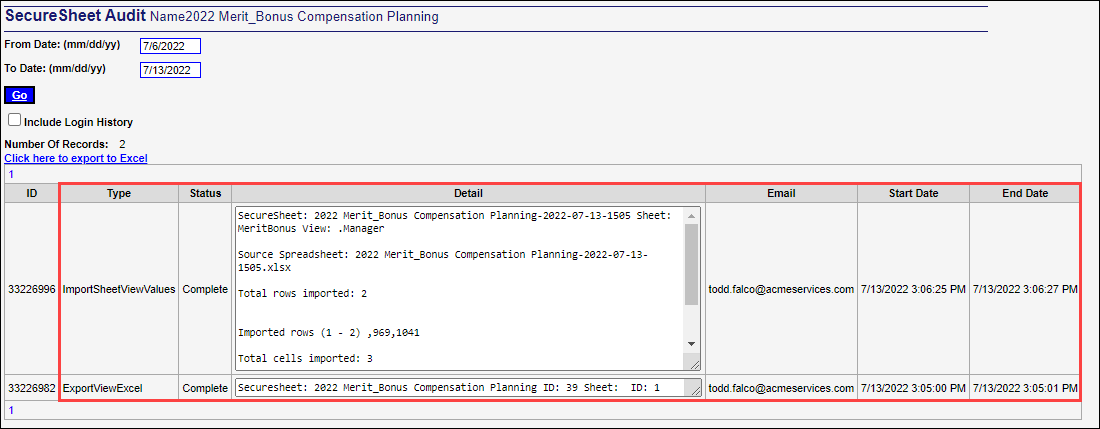
- After you import values by view, you may refer to the audit activity to see the details of your value import(s) at any time.
Video: Import Values by View
Import Values by View
- Login to SecureSheet.
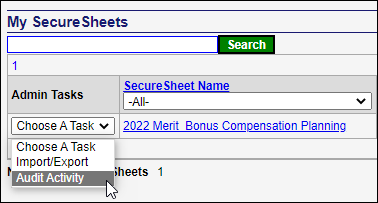
- Select Import/Export from the Admin Tasks drop-down.
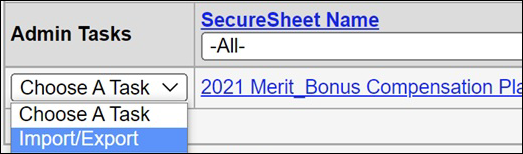
OR
Click the SecureSheet listed on your home page and click the Import – Values (By View) link.

NOTE: The Admin Tasks menu drop-down and link are only available if you have been given permission to Import Values by View.
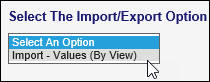
- Select Import – Values (By View) from the drop-down.
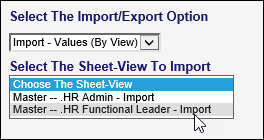
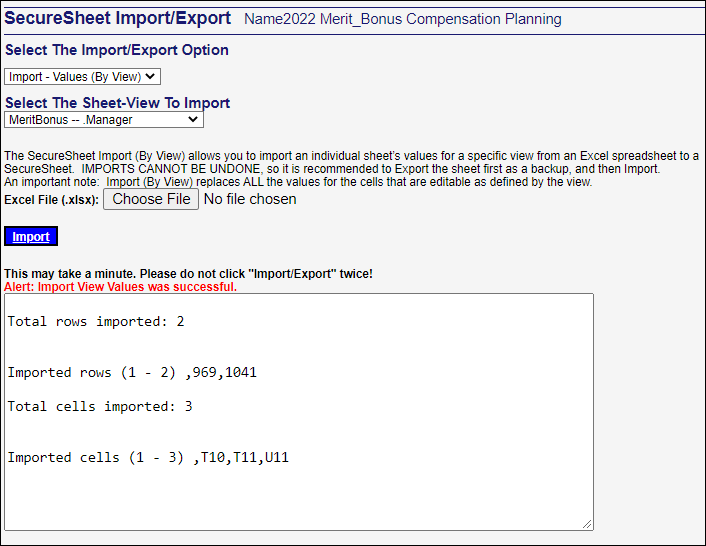
- Select the Sheet and the respective view you want to import values to from the Select The Sheet-View to Import drop-down.
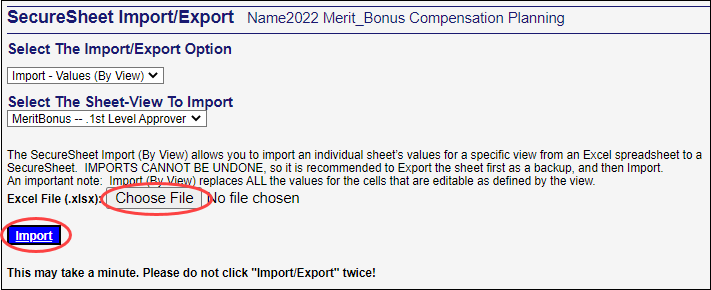
- Browse for the file you want to import by clicking Choose File, select the file, and click Import.
NOTE: If the file you are importing is password-protected, remove the password protection before importing the file. You will see an error message telling you to do the same if you try to import a password-protected file.
- When the import completes successfully, you will receive a confirmation message with the updated values status.
- Click
 to return to working in SecureSheet.
Auditing your Import Activity
- Adjust the dates for the activity you want to see as needed and click Go.
- Click to return to working in SecureSheet.