
Export a View
SecureSheet has an export feature that makes it simple for end users to work with their data offline; this is a convenient option for managers with a large organization to review, or traveling where there is intermittent internet access, for example.
NOTE: Typically, managers who export their data are not given permission to import updates. Your organization will advise on importing updates to SecureSheet (e.g., as a manager, you may input updates when you are back online or a designated team member may assist, or you may be give permission to import values).
Export a View
- Login to SecureSheet.
- Click the SecureSheet listed on your home page.
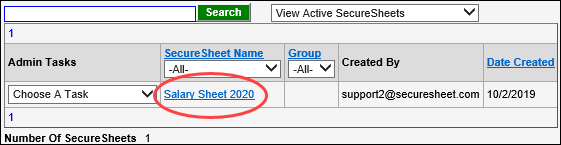
- You will see (one of) the Views you have permission to use in SecureSheet.

- Click Export View.

NOTE: If you want your exported Excel file to be in a specific sort order, sort it before you export the view. When a file is exported to excel from a view, sort is not enabled. However the data is sorted when it is exported is the sort order for the exported file and it cannot be modified.
- On the Export View screen:
- a. Enter a Password for your exported file if passwords are required on export. Remember what you entered.
- b. Click the ‘Click here to export this sheet’s data to Excel’ link.

You will see the following prompt while the sheet is exporting:

- When the sheet has exported, if you entered a password when exporting, the password pop-up will open in Excel. Enter your password to open the file in Excel. If you did not enter a password, your exported file will open directly in Excel.
- After you have exported, click Close Window to return to SecureSheet.

- If you are done working with SecureSheet, click Log Out (top right corner):

- Make changes to the exported Excel file, and follow the process defined by your organization to import your updates to SecureSheet.