How To Use Column Settings In Views?
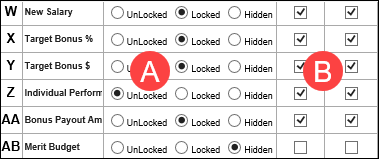
In each View in SecureSheet, columns may be UnLocked, Locked or Hidden from end users who are shared to the view. Column settings may be adjusted at any time after your initial SecureSheet is created.
To see a video on adjusting column settings, click here.
Column settings are defined as:
- UnLocked – column is visible and can be updated by user
- Locked – column is visible and cannot be updated by user
NOTE: Columns with formulas should be locked.
- Hidden – column is not visible to user
Additionally, columns can be set with Filter and/or Sort settings. Filter and Sort is defined as:
- Filter – puts a drop-down below the Column ID to filter by values in the column.
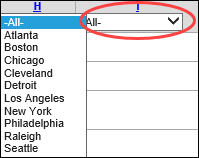
- Sort – puts a link on the Column ID that allows the column to be sorted in ascending or descending order.

Setting Up Columns in Views
- Login to SecureSheet.
- Select the SecureSheet from your home page.
- Click Views. This puts you into the view design.

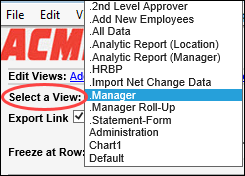
- Select the View you want to work with from the Select a View drop-down list to work with its settings.
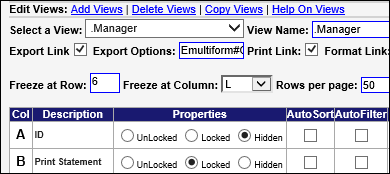
- Scroll through the columns and adjust the settings as you desire for the users of the View you are working in:
- Set the columns to UnLocked, Locked or Hidden.
- Click the check box to turn on/off Auto Sort / Auto Filter.
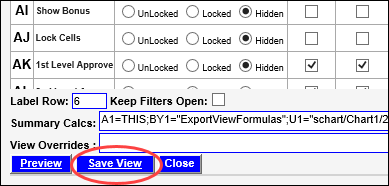
- Click Save View when you are done working with the column settings.
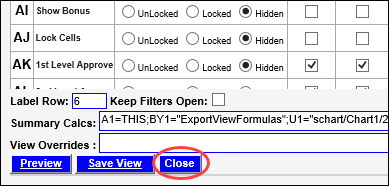
- Click Close to exit the view design.