
Navigate in SecureSheet
Video: Navigate SecureSheet
Your Home Screen
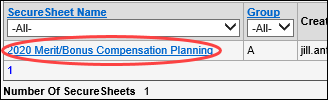
When you login, you will default to your SecureSheet home page. Click the SecureSheet link to open your view of SecureSheet.
Top Right Navigation

- Click <<Go Back to navigate to a previous window in SecureSheet. The browser back button should not be used to navigate when you are working in SecureSheet.
- Click Refresh to reset filters and sorting, or to clear data you have entered but do not want to save. You will return to the default view assigned to you.
- Click Help to access SecureSheet online help.
- Click Contact Us to email your internal support contact.
- Click Log Out to exit SecureSheet.
- Click the Zoom drop-down to increase or decrease the font in your SecureSheet window. This is separate from your browser zoom setting.
Save Changes
Click  to save your work in SecureSheet. Save Changes will calculate any formula-driven cells while you are working in SecureSheet. Other cells that have calculations that depend on your data entry will not calculate until you click Save Changes. Click Save Changes often.
Multiple Views
Select the “View” drop-down to see alternate views of the SecureSheet. A View drop-down will only appear if you have access to more than one view.


Moving through Pages
If you have more rows than are able to scroll in the window, use the arrows or the Select a Page drop-down list to navigate to additional rows of data.

Filters
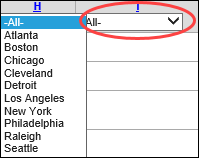
When a filter is applied to a column, there will be a drop-down below the column ID.
- Click the drop-down and select a value from the list.
- To remove the filter, select “All” from the filter drop-down or click the Refresh link in the top right navigation links.
Sort
When sort is available on a column, the Column ID (at the top of each column) will be underlined in blue.
- Click the underlined Column ID to sort ascending (a to z).
- Click the underlined Column ID again to sort descending (z to a).

NOTE: Only one column is able to be sorted at a time.
Export View
Click Export View to export the data in your current view to Excel. Follow the prompts that appear.

Scrolling Across Columns
Use the horizontal scroll bar at the bottom of the window to scroll from left to right and back to view columns.

Viewing Cell Notes
If a cell has notes associated with it, you will see a question mark in the cell.
- Click the question mark to see the notes appear in another browser tab.
- Closing the browser tab with the notes will not impact your main SecureSheet browser tab.
