
Modify the Default View on the Statement Tab
Modify the Default View on the Statement Tab
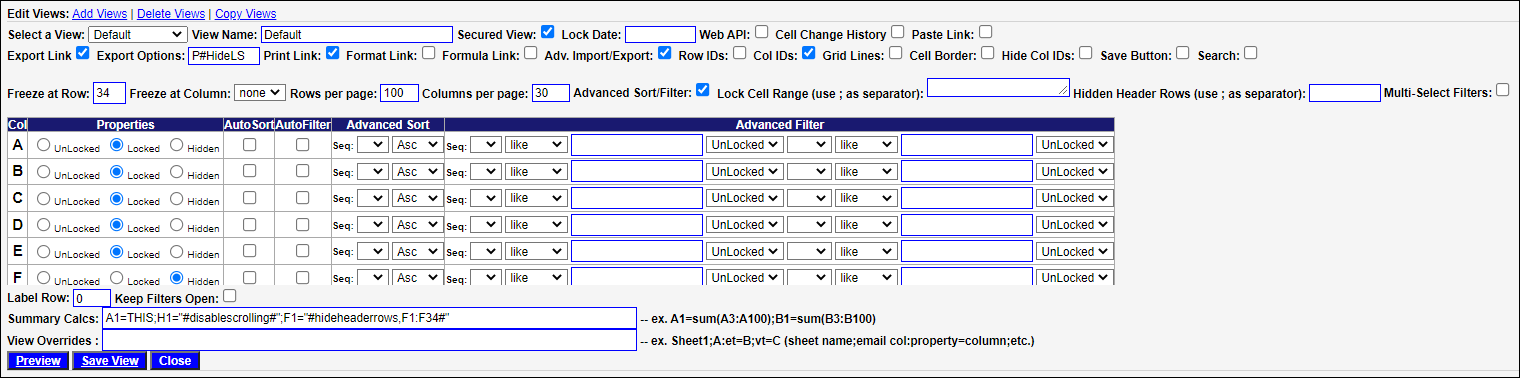
After a statement tab is created, the Default view on the Statement tab must be modified accordingly to support the INDEX/MATCH and INDIRECT formula logic on the statement tab that pulls in unique values for each exported statement:
- From the statement tab, select Views.
- Select Default from the Views: dropdown.
- Turn on the Export Link: checkbox.
- Enter P#HideLS in the Export Options: checkbox.
- Turn off the following checkboxes: Row IDs, Col IDs, Grid Lines, and Cell Border.
- Enter the last row of content on the statement tab in the Freeze at Row field. SecureSheet will then be able to automatically calculate all the mappings and applied logic for all of the rows in the statement.
NOTE: If you export a blank statement, check that your freeze at row is set to the last row of content on the statement tab.
- Put an Advanced Filter on Column-L: Seq: 1 = Show.
- In Summary Calcs, enter: A1=THIS;K1="#disablescrolling#";L1="#hideheaderrows,L1:L39#"
- Where hideheaderrows includes all of the rows in the statement and is the same as the "Show" column (in Step 8).
- Set every column with statement content to be displayed to Locked.
- Set every column without statement content to Hidden.
- Click Save View.
Continue to setup the statement on main SecureSheet tab: