
Export Statements
At the end of your Compensation Planning cycle, you can export compensation statements for each of your employees through SecureSheet. Statements may be exported individually or in a batch. In both instances, statements are exported to a .PDF file, which you can open and share with your employees. When you export statements in batch, the batch file exports the individual statements in your view to a zip file containing each statement.
If you have over 500 statements to export, consider exporting in batches up to 250 rows at a time. If you choose to export a large batch, it will take several minutes for the export to complete (2 - 3 seconds per statement as a benchmark).
- If you have a large group to export, you may filter the rows in your view first (e.g., by using the filter on the manager or department column).
- You may use the Search box to narrow the rows to a manageable number before exporting the batch. For example:
- In the Search box, type ROWS(12-250), click Search, click Export View; then type ROWS(251-500), click Search, click Export View.
Video: Export Statements
Printing/Exporting Statements Individually
- Login to SecureSheet.
- Click the SecureSheet listed on your home page.
- You may default to a view where you see the Print/Export Statement link, or you may need to select your “Print/Export Statements” view from the View drop-down list.
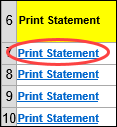
- Click the Print/Export Statement hyperlink.
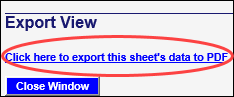
- Click the Click here to export this sheet’s data to PDF link.
You will see the following prompt while the statement is exporting:

- When the sheet has exported, select options from the pop-up in your browser to save or open the exported statement.
- After you have exported, click Close Window to return to SecureSheet.

- To export more statements, repeat steps 4 – 7. If you are done working with SecureSheet, click Log Out (top right corner).
Printing/Exporting Statements In Batch
- Login to SecureSheet.
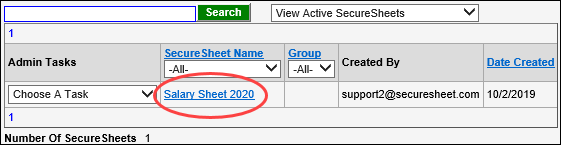
- Click the SecureSheet listed on your home page.
- You may default to a view where you see the Print Statement link (to the left of your data), or follow instructions from your organization.
- Click the Export View link at the top of the page.

- If you have over 500 statements to export, consider exporting in batches up to 250 rows at a time. If you choose to export a large batch, it will take several minutes for the export to complete (2 - 3 seconds per statement as a benchmark).
- If you have a large group to export, you may filter the rows in your view first (e.g., by using the filter on the manager or department column).
- You may use the Search box to narrow the rows to a manageable number before exporting the batch. For example:
- In the Search box, type ROWS(12-250), click Search, click Export View; then type ROWS(251-500), click Search, click Export View.
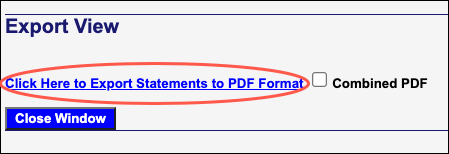
- Click the Click here to Export Statements to PDF Format link.
- You will see the following prompt while the statement zip file is exporting:

- When the batch has exported to a zip file, select options from the pop-up in your browser to save or open the exported statement zip file.
NOTE: If you open the zip file, you will see the individual PDF files for each of your employees.
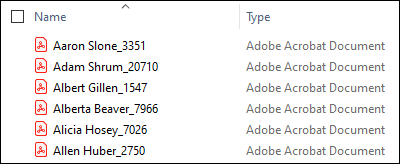
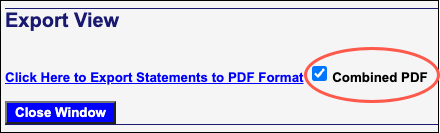
NOTE: If you select the Combined PDF checkbox, the statements will export into a single zipped PDF file, not an individual PDF file for each of your employees.
- After you have exported statements, click Close Window to return to SecureSheet.

- When you are done working with SecureSheet, click Log Out (top right corner).