
Export Large Statement Batches to Zip Files
Depending on an organization's operations, direct managers do not export statements, and sometimes compensation teams or people partners have the responsibility to export statements for the organization. When batches of statements may be large, the export job can take some time. To support large batch exports, like when you kick off a job with 100, 250 or 500 statements, you can access the statements in a zip folder through File Attachments when the export completes (which could take some time).
There are two steps to this setup:
- Set up a view to capture batch statement exports - add this to any view you want to have this functionality
- Consider which users need to access this functionality and provide them instructions
Set Up a View to Capture Batch Statement Exports
- In the View Properties of any view, add this sytax at the end of the batch export instruction in the Export Options: field:
- #multiform#C;D;Click Here to Export Statements to PDF Format#HideLS#ZipPassword:MYCOMPANY#
- where MYCOMPANY is the password to open the zip file (you decide on the password)
- This will tell SecureSheet to create an encrypted backup zip file with that password in the statement_zip_files folder in File Attachments.
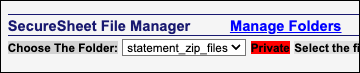
- When a batch of statements is exported from a view with this added instruction, it will put the exported statements in a zip file in the statement_zip_files folder and the Audit Activity detail will show the file name:

- Any user who is given File Attachment permission and knows the password to a zip file can access the zip file backups in the statement_zip_files folder.
NOTE: If you have several users who need this zip file functionality and they can only access the statement zip file for the employee data they have permission to access, set up a view for each of them with their own unique password.
End User Instructions for Accessing Statement Zip Files
- From your SecureSheet home page, click File Attachments. You will see the statement_zip_files folder:

- Find your file and click to download it:
- Open the zip file in your file system with password: <GIVE THEM THE PASSWORD>
- When you export a large batch of statements, it could take a while, but when the job is complete, it will be in the statement_zip_files folder.